
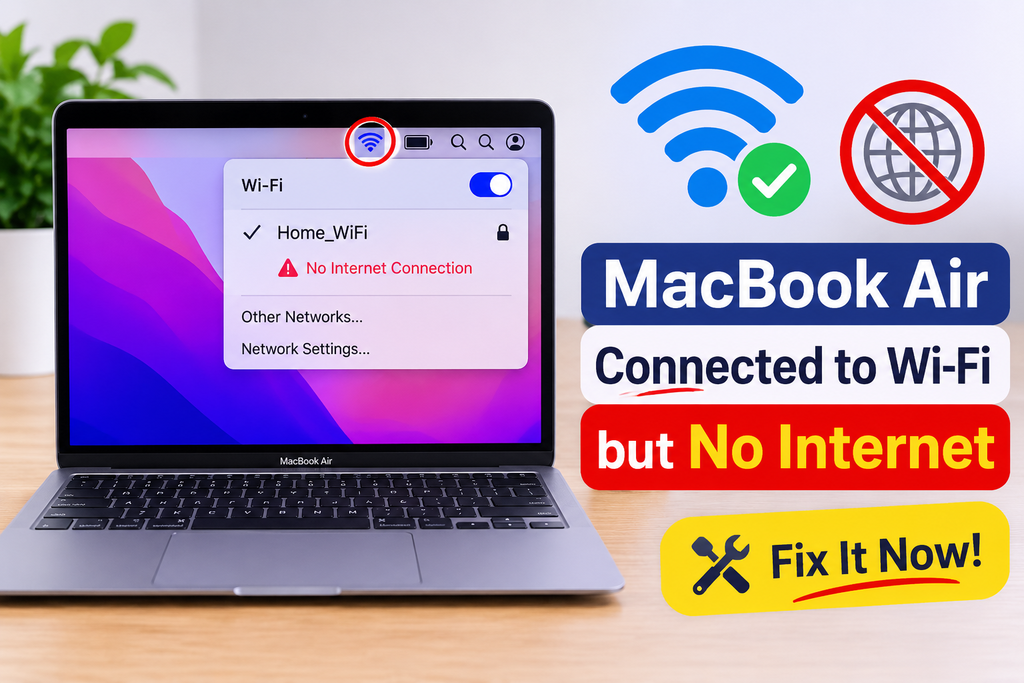
Last March I sat down at a coffee shop, opened my M1 MacBook Air, and watched the Wi-Fi icon do what it always does. Full bars. Connected. Then Safari threw up its “You Are Not Connected to the Internet” page and Slack just spun in circles. My phone, on the same network, was loading Instagram like nothing was wrong.
That combination (a connected Mac with no internet) is one of the most irritating problems macOS has. It’s also usually fixable in under ten minutes once you know where to look. I’ve run into it on three different Airs over the years, and I’ve helped two friends through it, so I’ve got a pretty good sense of which fixes work and which are a waste of time.
First, figure out whose fault it is
Before you touch a single setting, check whether the problem is your Mac or the network. Grab your phone, turn off cellular data, and see if it can load a website on the same Wi-Fi. If it can’t either, the Mac is innocent and you’re dealing with a router or ISP problem.
If the phone works fine, try your Mac on a different network. A phone hotspot is the fastest test. When my Air connected to my hotspot and loaded everything instantly, I knew the issue was something between my Mac and that specific router. That narrows things down a lot.
Also try a few different sites. Sometimes one site is down, or your DNS is acting up, and everything else is fine. If Google loads but nothing else does, skip ahead to the DNS section.
The boring fixes that work more often than they should
Turn Wi-Fi off and back on. Click the Wi-Fi icon in the menu bar, flip the switch, wait ten seconds, flip it back. It sounds too simple to matter, but I’d say it clears up maybe one in five of these cases for me.
Restart the Mac next. Not sleep, not close the lid, an actual restart. I know. Nobody wants to hear that, but the networking stack on macOS occasionally gets into a bad state after waking from sleep, and a reboot resets it.
Then restart the router. Unplug it, count to thirty (really count, because ten seconds isn’t enough for some modems), and plug it back in. Give it a couple of minutes to fully come back before you test anything.
Forget the network and rejoin
This is the fix I reach for next. Your Mac stores a profile for every network it’s joined, and that profile can get corrupted or go stale, especially after a macOS update or a router firmware change.
Open System Settings > Wi-Fi, click Details next to your network, and choose Forget This Network. Then reconnect and enter the password again. On older versions of macOS, you’ll find this under System Preferences > Network > Wi-Fi > Advanced, where you select the network and hit the minus button.
Make sure you know the Wi-Fi password before you do this. I once forgot a network at a relative’s house and then realized I had no idea what the password was. Don’t be me.
Renew your DHCP lease
Here’s the thing that usually explains the “connected but nothing works” situation: your Mac joined the Wi-Fi network, but the router never handed it a proper IP address. The connection exists, but your Mac doesn’t know how to talk to anything.
Go to System Settings > Wi-Fi > Details > TCP/IP and look at the IP address. If it starts with 169.254, that’s a self-assigned address, which basically means your Mac gave up waiting for the router. Click Renew DHCP Lease and wait a few seconds. A normal address will usually start with 192.168 or 10.0.
When I tried this at the coffee shop, the address changed from a 169.254 number to a real one within about five seconds, and Slack woke up immediately. Problem solved, though honestly I’m still annoyed macOS didn’t flag it. The icon should be yellow or something. It just sits there looking healthy while the whole connection is dead.
Change your DNS servers
If you can reach some things but not others, or pages hang forever before loading, DNS is the likely culprit. Your ISP’s default DNS servers can be painfully slow or flaky, and I’ve had them fail on me more than once.
In the same Details window, click DNS. Remove whatever’s there with the minus button, then add 1.1.1.1 and 8.8.8.8 with the plus button. Those are Cloudflare’s and Google’s public servers. Click OK, and you may need to toggle Wi-Fi off and on again.
This is the fix that has worked most often for me at home. My ISP’s DNS just falls over every few months, and switching permanently to Cloudflare ended the problem. Could be coincidence, but I haven’t had the issue since I made the change about a year ago.
You can also flush the DNS cache from Terminal with sudo dscacheutil -flushcache; sudo killall -HUP mDNSResponder. It’ll ask for your password. It’s a quick one to try, though it fixes less than people claim. If you want to see how other people have used it (and when it didn’t help), the Ask Different community has years of threads on exactly this.
Turn off Private Wi-Fi Address
This one is easy to miss. Newer versions of macOS use a randomized MAC address for each network to protect your privacy, which is a good idea in theory. In practice, some routers, especially ones with MAC filtering or older firmware, don’t handle it well.
Go to Details for your network and look for Private Wi-Fi Address. Set it to Off, then reconnect. A friend of mine had an Air that wouldn’t get online at her office for two weeks, and the IT guy fixed it by flipping this one setting. Two weeks of misery for a single dropdown.
Check for VPNs, proxies, and security software
A VPN that’s half connected can kill your internet while everything else looks normal. Disconnect it completely and test again. If you use a VPN app with a “kill switch,” that’s even more likely to be the cause, since it blocks all traffic when the tunnel drops.
Proxies are the other sneaky one. In Details > Proxies, make sure nothing is toggled on unless you set it up on purpose. I found a leftover proxy setting on a work-issued Mac once, and it had been quietly breaking things for days.
Antivirus and content filter apps can cause the same trouble. Try quitting them temporarily to see if the connection comes back.
Public Wi-Fi and captive portals
If you’re at a hotel, airport, or café, the network may need you to accept terms or enter a room number before it lets you through. Usually a login page pops up on its own. Sometimes it doesn’t, and you’re left with a Mac that says it’s connected and a network that’s silently blocking everything.
Try opening a plain HTTP site like neverssl.com or captive.apple.com in your browser. That tends to trigger the login page. HTTPS sites often won’t, which is why typing in Google or Apple’s homepage just gives you an error.
Use Wireless Diagnostics, but don’t expect much
Hold down the Option key, click the Wi-Fi icon in the menu bar, and choose Open Wireless Diagnostics. It’ll run a scan and tell you if it finds something wrong.
I’ll be honest: it’s pretty mediocre. It almost never gives a clear answer, and the “summary” it produces tends to say things like “your network may be congested.” Thanks. The one useful thing is the Option-click menu itself, which shows your channel, signal strength, and noise level. If your signal is below about -70 dBm, you’ve got a weak connection, and moving closer to the router might be all you need.
The bigger reset: delete the network configuration files
If none of that worked, this is the one that has rescued me when everything else failed. It resets your Mac’s network settings to defaults, so it’s a bit more drastic.
Turn off Wi-Fi first. In Finder, press Command-Shift-G and paste in /Library/Preferences/SystemConfiguration/. You’ll see a handful of .plist files. Copy the folder contents to your Desktop as a backup, then delete the ones starting with com.apple.airport and com.apple.network, plus NetworkInterfaces and preferences. Restart your Mac, turn Wi-Fi back on, and rejoin your network.
You’ll lose any custom network settings, like manually set DNS servers or VPN configurations. Your saved Wi-Fi passwords stay in Keychain, so those are fine. The first time I did this, I was nervous, but it worked right away and nothing broke.
Look at the router, too
If other devices have flaky internet as well, stop poking at your Mac. Log into your router and check for a firmware update. Try switching between the 2.4 GHz and 5 GHz bands, or change the Wi-Fi channel if you’re in an apartment building with dozens of competing networks.
Check your router’s connected devices list too. If it’s full, or if your Mac isn’t showing up at all, that tells you something. Some routers also have a limit on how many devices they’ll hand addresses to, which is more common than you’d think on cheap ISP-provided gear.
When it might actually be hardware
Almost never. I’d say 95 percent of the time this is software or the network. But if your Air can’t see any Wi-Fi networks at all, or the Wi-Fi switch is greyed out, or it drops constantly on every network you try, that points to a hardware fault.
Run Apple Diagnostics by shutting down, then holding the power button on an Apple silicon Mac until startup options appear, and pressing Command-D. If it reports a problem, book a Genius Bar appointment. And please, save your money on those “Wi-Fi repair” or “Mac cleaner” apps that pop up in search results. None of them do anything you can’t do yourself in System Settings.
Where to ask when you’re still stuck
Sometimes your problem is weird enough that no checklist covers it. That’s when I stop guessing and go read what other people are saying. A few places have actually helped me.
Apple Support Communities. The official Apple discussion forums are my first stop for anything tied to a specific macOS version. If a recent update broke Wi-Fi for a lot of people, you’ll see the same complaint stacked up across dozens of threads, which saves you from tearing apart a setup that was never the problem. The answers are hit or miss, and you’ll wade through a lot of “have you tried restarting?” replies, but the good ones are worth it.
Reddit. r/macbookair is great for model-specific quirks, and r/MacOS is bigger and tends to get faster replies on software issues. Post your macOS version, what you’ve already tried, and what your IP address shows under TCP/IP. People answer faster when you give them details, and they get cranky when you just write “wifi broken help.”
Ask Different. This Stack Exchange site is better for precise, technical questions, like Terminal commands or weird DHCP behavior. It’s stricter about how you ask, which gets old, but the answers are usually tighter and more accurate than what you’ll find in a forum thread.
MacRumors Forums. The MacRumors forums are good for spotting whether a problem is spreading after a new release. I’ll check there when I suspect a macOS update caused it, since people tend to report breakage within hours.
FAQ
Why does my MacBook Air say connected but nothing loads?
Usually it joined the router but never got a working IP address, or your DNS servers aren’t responding. Renewing the DHCP lease or switching DNS typically fixes it.
Will resetting network settings delete my files?
No.
Does updating macOS help?
Sometimes, yeah. Apple has shipped Wi-Fi bug fixes in point updates before, so if you’re a few versions behind, it’s worth installing. You’ll need a connection to do it, though, so use a hotspot or Ethernet adapter if you have to.
Is it my router or my Mac?
Test another device on the same network. If that’s also dead, it’s the router or your ISP. If only your Mac is affected, start with forgetting the network and renewing the DHCP lease.
Why does this keep happening after sleep?
It could be a stale DHCP lease or a flaky router. Changing your DNS and turning off Private Wi-Fi Address on that network are both worth trying. If it keeps happening, a router firmware update is the next thing I’d check.
Can I use Ethernet instead?
Yep. A cheap USB-C to Ethernet adapter works fine and is a good backup for exactly this situation. I keep one in my laptop bag.
Where can I ask for help if nothing works?
Start with the Apple Support Communities or r/macbookair. Include your macOS version and what you’ve already tried.
What I’d do first
If I woke up tomorrow with a connected-but-dead Air, I’d test my phone, toggle Wi-Fi, renew the DHCP lease, and switch DNS to Cloudflare, in that order. That sequence has solved this for me nearly every time. The deeper resets are there if you need them, but you probably won’t.
I linked to the main community hubs (Apple Support Communities, r/macbookair, r/MacOS, Ask Different, and MacRumors Forums) instead of specific threads. I can’t verify individual thread URLs, and those tend to get archived or deleted. If you have particular threads you want linked, send them over and I’ll work them in.