

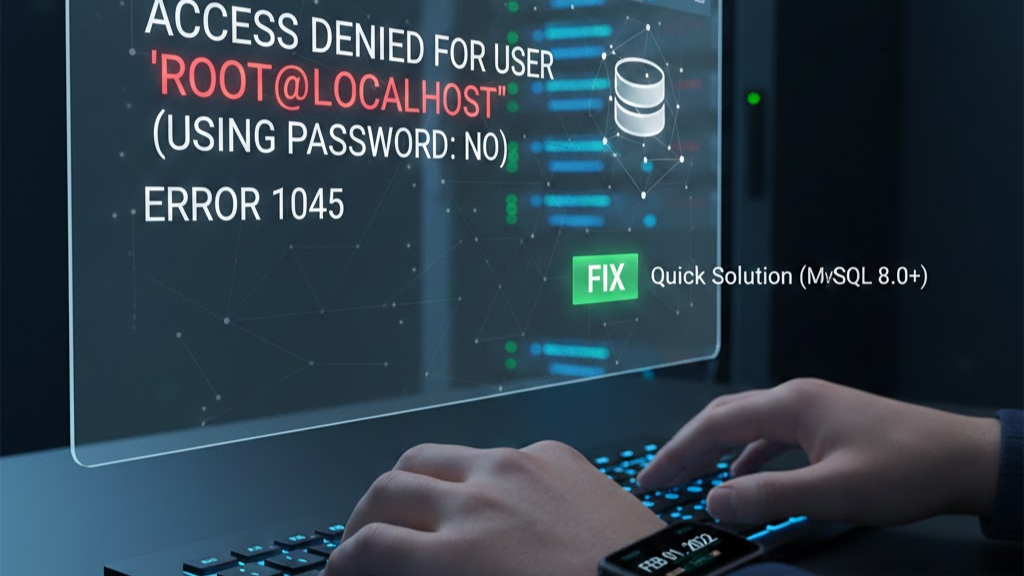
If you’ve ever tried logging into MySQL and suddenly hit this frustrating message:
Access denied for user ‘root’@’localhost’ (using password: NO)
Don’t worry—you’re not alone. This error is practically a rite of passage for anyone working with MySQL or MariaDB. Whether you’re a beginner or a seasoned developer, this problem usually pops up during installation, server migration, or authentication changes.
The good news? It’s fixable. And most of the time, it’s much simpler than it looks.
Let’s break it down step by step, from lightning-fast fixes to deeper solutions—so you can get back to working with your database in minutes.
⚡ 10-Second Quick Fix (Linux/Ubuntu)
If you just installed MySQL and are getting the “using password: NO” error, try logging in with system root privileges:
sudo mysql -u rootWhy this works: Modern MySQL installs use the auth_socket plugin, which authenticates you via your Linux login rather than a separate password. If this works, you don’t need to reset anything!
Why Does This Error Happen? (The Root Cause)
Understanding why Error 1045 occurs is the first step toward a permanent fix. According to the Official MySQL 8.0 Reference Manual, this error typically triggers when the server rejects a connection attempt due to incorrect credentials or a mismatch in authentication methods.
In modern environments, especially after a fresh installation on Ubuntu or Debian, the default security policy has shifted. While older versions relied heavily on standard passwords, modern versions often default to the auth_socket plugin. This shift has led to significant discussions on Stack Overflow, as users find that their traditional “root” login no longer works without sudo. Whether you are using the standard community edition or the MariaDB fork, the core issue usually boils down to how the root user is defined in the mysql.user table.
Introduction to MySQL Error 1045
What This Error Really Means
The message tells us one key thing: MySQL expected authentication credentials, but didn’t receive any. In simple terms, MySQL is saying:
“I was expecting a password, but you didn’t send one—or you sent something I don’t recognize.”
That’s it. Nothing scary. Nothing broken.
Why Beginners Face This Issue Frequently
Modern MySQL installations often use different authentication plugins and security defaults. So instructions from older tutorials may no longer work. You might follow a guide written five years ago, and boom—error 1045.
Understanding MySQL Authentication Basics
Before fixing the error, it helps to know how MySQL decides who gets access.
Password-Based Authentication
Traditionally, MySQL checks:
- Username
- Password
- Host (where you’re connecting from)
If all three match, you’re allowed in.
auth_socket vs mysql_native_password
Newer Linux systems often use auth_socket instead of passwords for root. This means:
If you’re logged into Linux as root (or via sudo), MySQL trusts you automatically.
Older systems use mysql_native_password, which requires a password.
How Plugins Affect Login Behavior
Think of plugins as different locks on the same door. If you’re holding the wrong key, the door won’t open—even if your username is correct.
Quick 10-Second Fix for Linux Users
Using sudo mysql -u root
Try this:
sudo mysql -u root
Why This Command Works
Because MySQL checks your operating system identity. If your OS user has sudo privileges, MySQL lets you in without asking for a password.
If this works—congratulations. You’re done.
Checking If You Forgot the -p Flag
Correct Way to Log In
mysql -u root -p
Then press Enter and type your password.
Common Command-Line Mistakes
Typing:
mysql -u root
Means:
“I want to log in without a password.”
Even if your password exists, MySQL won’t ask for it unless you add -p.
Resetting MySQL Root Password Safely
When Should You Reset Password
- You forgot it
- Default password doesn’t work
- Someone else set it
Stopping MySQL Service
sudo service mysql stop
Starting MySQL in Safe Mode
sudo mysqld_safe --skip-grant-tables &
This bypasses authentication temporarily.
Logging In Without Password
mysql -u root
Updating Root Password
FLUSH PRIVILEGES;
ALTER USER 'root'@'localhost' IDENTIFIED BY 'NewStrongPassword123!';
FLUSH PRIVILEGES;
EXIT;
Restarting MySQL Normally
sudo service mysql stop
sudo service mysql start
Now try:
mysql -u root -p
Changing Authentication Plugin to mysql_native_password
Why Plugin Switching Is Needed
Many desktop tools and web apps don’t work well with auth_socket.
Step-by-Step Plugin Change
Inside MySQL:
ALTER USER 'root'@'localhost'
IDENTIFIED WITH mysql_native_password BY 'YourPassword';
FLUSH PRIVILEGES;
Verifying Current Authentication Plugin
SQL Command to Check Plugin
SELECT user, host, plugin FROM mysql.user WHERE user='root';
If you see auth_socket, that explains the error.
Fixing Host-Related Restrictions
Understanding localhost vs 127.0.0.1
MySQL treats these as separate locations. You might have:
- root@localhost
- [email protected]
Only one may exist.
Updating Host Permissions
CREATE USER 'root'@'%' IDENTIFIED BY 'password';
GRANT ALL PRIVILEGES ON *.* TO 'root'@'%' WITH GRANT OPTION;
FLUSH PRIVILEGES;
Fixing the Error in XAMPP / WAMP
phpMyAdmin Configuration
Open:
config.inc.php
Updating Config File
Ensure:
$cfg['Servers'][$i]['AllowNoPassword'] = false;
And set correct password:
$cfg['Servers'][$i]['password'] = 'YourPassword';
Fixing the Error in MySQL Workbench
Editing Connection Settings
- Open MySQL Workbench
- Edit connection
- Enter password
- Set authentication plugin
Testing Connection
Click Test Connection and confirm success.
Using MySQL Secure Installation
What mysql_secure_installation Does
- Sets root password
- Removes anonymous users
- Disables remote root login
Running the Tool
sudo mysql_secure_installation
Follow prompts.
Security Best Practices
Strong Password Creation
Use:
- Uppercase
- Lowercase
- Numbers
- Symbols
Example:
Db@2026Secure!
Avoiding Root Usage in Apps
Create a separate database user for applications. Root is like the master key—don’t hand it out casually.
Preventing Future Login Errors
Save Credentials Securely
Use password managers or environment variables.
Keep Plugins Consistent
Don’t mix auth_socket and password authentication unless you understand both.
Troubleshooting Checklist
- Did you use
-p? - Is MySQL running?
- Is password correct?
- Is plugin compatible?
- Are you using correct host?
When to Reinstall MySQL
Signs Installation Is Corrupted
- MySQL won’t start
- Data directory missing
- Repeated crashes
In these cases, backup data and reinstall cleanly.
Final Thoughts
The “access denied for user root localhost using password no” error looks intimidating, but it’s really just MySQL asking for proper authentication. Once you understand plugins, passwords, and login flags, this issue becomes trivial.
Think of MySQL like a guarded building. You’re at the door—it just needs the right key, the right badge, or the right handshake.
Now you know all three.
FAQs
1. Why does MySQL say using password: NO even when I have a password?
Because you didn’t include -p, so MySQL never asked for it.
2. Is auth_socket better than password authentication?
It’s more secure on single-user servers but less compatible with external tools.
3. Can I remove root password entirely?
Not recommended. Always keep root protected.
4. Does this error occur on Windows?
Yes, especially in XAMPP and WAMP setups.
5. Should I use root user for websites?
No. Always create a separate limited user.